
Multiple games at once — Konferenz streaming explained
You don’t want to pick one match when three games are live at the same time. That’s exactly what Konferenz streaming and Multi-Stream are for: one screen, multiple events, fast switching, and real match awareness.
On this page you’ll learn what “Konferenz” really means (and what it doesn’t), how Multi-View works with IPTV, which apps/devices actually support picture-in-picture or split-screen, and how to set up VenneTV so you can follow Bundesliga matchdays, multiple NFL Sunday games, or parallel Formula 1 sessions without chaos.
On this page you’ll learn what “Konferenz” really means (and what it doesn’t), how Multi-View works with IPTV, which apps/devices actually support picture-in-picture or split-screen, and how to set up VenneTV so you can follow Bundesliga matchdays, multiple NFL Sunday games, or parallel Formula 1 sessions without chaos.
Konferenz vs. Multi-Stream: what’s the difference?
People often mix two things under the word “Konferenz” — but they’re not the same.
1) Konferenz (one curated channel)
Konferenz is a single stream that jumps between matches. You get the key moments: goals, penalties, red cards, big chances. It’s “directed” for you. That’s why it feels smooth: you don’t manage anything. You just watch one channel.
2) Multi-Stream / Multi-View (several streams at once)
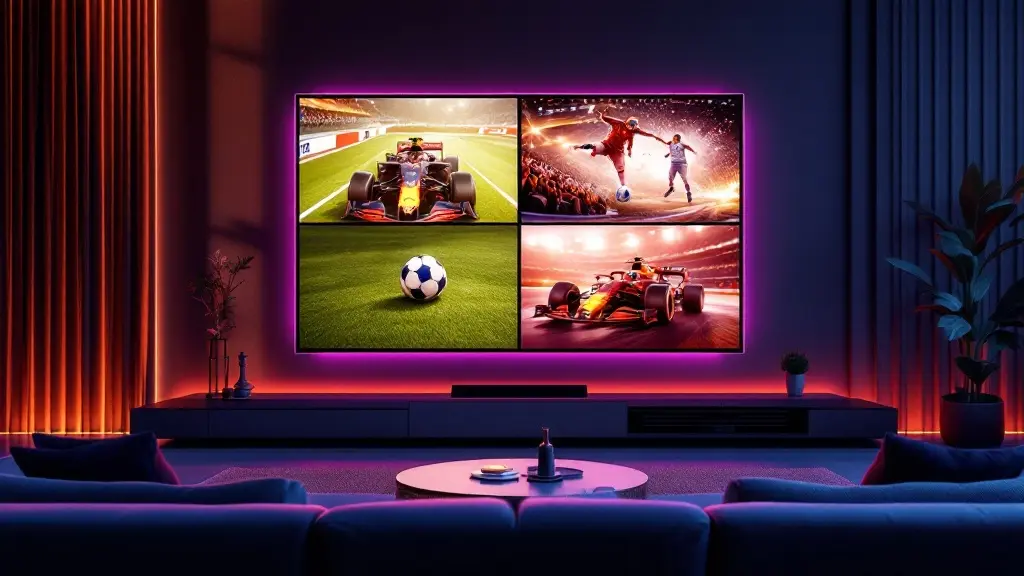
Multi-Stream means you watch multiple live channels in parallel on one screen. You choose the exact matches (or sessions). You can mute all but one, swap audio instantly, and keep an eye on everything without waiting for a Konferenz director.
Where each option shines
Important reality check: Multi-View doesn’t magically merge channels on the server side. Your device decodes multiple streams at the same time. That means your setup (device + internet + app) matters more than the word “Konferenz” on the page.
1) Konferenz (one curated channel)
Konferenz is a single stream that jumps between matches. You get the key moments: goals, penalties, red cards, big chances. It’s “directed” for you. That’s why it feels smooth: you don’t manage anything. You just watch one channel.
2) Multi-Stream / Multi-View (several streams at once)
Multi-Stream means you watch multiple live channels in parallel on one screen. You choose the exact matches (or sessions). You can mute all but one, swap audio instantly, and keep an eye on everything without waiting for a Konferenz director.
Where each option shines
- Bundesliga Saturday 15:30: Konferenz is great if you want the highlight flow. Multi-View is better if you care about 2–4 specific clubs and don’t want to miss build-up play.
- NFL Sunday: Multi-View is the real weapon because games overlap for hours and momentum shifts fast.
- Formula 1 weekend: You may want Race + onboard-focused channel + timing/data channel (if available) or you may just want to monitor multiple sessions/practice streams. Multi-View gives you control.
Important reality check: Multi-View doesn’t magically merge channels on the server side. Your device decodes multiple streams at the same time. That means your setup (device + internet + app) matters more than the word “Konferenz” on the page.
Best ways to watch multiple games in parallel (PiP, split-screen, Multi-View)
There are three practical methods to do “multiple matches at once”. They feel similar, but they behave differently on real devices.
A) True Multi-View inside an IPTV app
This is the cleanest approach. The app opens 2, 3, or 4 channels in a grid. You pick which one has audio, and you can swap the main window quickly. This is what most users mean by “multi-stream”.
B) Picture-in-Picture (PiP)
PiP keeps one channel full-screen and adds a small floating window with a second stream. Great if you mainly watch one match but don’t want to miss goals elsewhere.
C) Split-screen / multi-window on the device OS
Some Android-based devices can split the screen into two apps. In practice it’s less stable for live TV, and many TV boxes limit background playback. Still useful for “one match + one stats app” or “one match + another app stream”.
What to expect on a normal TV
Most Smart-TV operating systems (especially Tizen/WebOS) are limited. Some TVs offer a “Multi View” feature, but it often supports only specific sources (HDMI + phone cast) and not two IPTV app streams. If you want reliable multi-stream for sports, a dedicated device like Fire-TV or an Android TV box usually wins.
A) True Multi-View inside an IPTV app
This is the cleanest approach. The app opens 2, 3, or 4 channels in a grid. You pick which one has audio, and you can swap the main window quickly. This is what most users mean by “multi-stream”.
B) Picture-in-Picture (PiP)
PiP keeps one channel full-screen and adds a small floating window with a second stream. Great if you mainly watch one match but don’t want to miss goals elsewhere.
C) Split-screen / multi-window on the device OS
Some Android-based devices can split the screen into two apps. In practice it’s less stable for live TV, and many TV boxes limit background playback. Still useful for “one match + one stats app” or “one match + another app stream”.
What to expect on a normal TV
Most Smart-TV operating systems (especially Tizen/WebOS) are limited. Some TVs offer a “Multi View” feature, but it often supports only specific sources (HDMI + phone cast) and not two IPTV app streams. If you want reliable multi-stream for sports, a dedicated device like Fire-TV or an Android TV box usually wins.
- 2 streams: realistic on many mid-range devices if your internet is stable.
- 3–4 streams: needs a stronger device and careful bitrate expectations (not every stream in 4K at once).
- Audio control: Multi-View apps typically allow one active audio source. That’s normal.
Apps that actually support Multi-View for IPTV (and what works best)
If your goal is “Konferenz on your own terms”, the app is the deciding factor. Here are the options that matter most for sports users in Germany/Europe.
TiviMate (Premium)
TiviMate is the go-to choice for Multi-View on Android TV / Fire-TV style devices. It’s fast, remote-friendly, and built for channel surfing.
IPTV Smarters Pro
Smarters is popular because it’s simple and available on many platforms. Multi-screen support depends on the version/platform, but for many users it’s the easiest entry point for 2–4 screens.
Smart IPTV (Smart-TV app)
Smart IPTV is common on Smart-TV setups, but multi-window is generally limited by the TV OS. If your main requirement is real Multi-View, a TV-only app is usually not enough. Consider adding a streaming stick/box for sports days.
Enigma2 (sat/receiver-style boxes)
Enigma2 setups can be powerful and flexible. Multi-stream depends on the box performance and configuration. If you already run Enigma2, you can build a very “sports-native” workflow, but it’s more technical than Fire-TV + TiviMate.
VenneTV web player
On a laptop/desktop, you can simply open multiple browser tabs or windows (or use multiple monitors). This is underrated for NFL Sundays: one big screen for the main game, one smaller screen for a second match, plus a live ticker. It’s not as couch-friendly, but it’s extremely effective.
Tip for stability: Don’t chase 4 windows if 2 windows in clean HD already give you the “Konferenz effect”. Smooth playback beats bragging rights.
TiviMate (Premium)
TiviMate is the go-to choice for Multi-View on Android TV / Fire-TV style devices. It’s fast, remote-friendly, and built for channel surfing.
- Multi-View grid: open multiple channels at once, swap focus quickly.
- Favorites & groups: perfect for a Bundesliga matchday list or NFL game list.
- EPG support: helps you see what’s live and what’s next.
IPTV Smarters Pro
Smarters is popular because it’s simple and available on many platforms. Multi-screen support depends on the version/platform, but for many users it’s the easiest entry point for 2–4 screens.
- Multi-screen mode: good for “main match + 1–3 side matches”.
- Quick switching: useful when goals happen fast across games.
Smart IPTV (Smart-TV app)
Smart IPTV is common on Smart-TV setups, but multi-window is generally limited by the TV OS. If your main requirement is real Multi-View, a TV-only app is usually not enough. Consider adding a streaming stick/box for sports days.
Enigma2 (sat/receiver-style boxes)
Enigma2 setups can be powerful and flexible. Multi-stream depends on the box performance and configuration. If you already run Enigma2, you can build a very “sports-native” workflow, but it’s more technical than Fire-TV + TiviMate.
VenneTV web player
On a laptop/desktop, you can simply open multiple browser tabs or windows (or use multiple monitors). This is underrated for NFL Sundays: one big screen for the main game, one smaller screen for a second match, plus a live ticker. It’s not as couch-friendly, but it’s extremely effective.
Tip for stability: Don’t chase 4 windows if 2 windows in clean HD already give you the “Konferenz effect”. Smooth playback beats bragging rights.
How many parallel streams do you need? (And how VenneTV handles it)
Multi-Stream only works if your account setup matches your household setup. Two different limits matter:
Typical stream needs for sports fans
VenneTV package choices (practical guidance)
VenneTV is built for flexible usage: no contract lock-in, and you can choose a setup that matches your real viewing habits instead of paying for capacity you don’t use. For multi-stream viewing, you typically pick a plan based on the number of simultaneous connections you need (for example 1, 2, or more).
Important: If you run Multi-View with 2–4 windows on one device, many apps count each window as its own stream/connection. So if your goal is a 4-game grid, plan your package accordingly.
What you get with VenneTV (relevant for sports)
- Device performance limit: how many streams your device can decode at once.
- Account / package stream limit: how many connections you can use in parallel.
Typical stream needs for sports fans
- Solo viewer: 1 stream is enough for normal viewing. If you want PiP or true 2-screen Multi-View on one device, you’ll want a setup that allows at least 2 parallel streams.
- Couple / shared flat: 2 parallel streams covers “living room match + second room series” or “main match + Konferenz on another screen”.
- Sports-heavy household: 3+ streams can make sense when multiple people watch different events (Bundesliga + NBA + kids TV) at the same time.
VenneTV package choices (practical guidance)
VenneTV is built for flexible usage: no contract lock-in, and you can choose a setup that matches your real viewing habits instead of paying for capacity you don’t use. For multi-stream viewing, you typically pick a plan based on the number of simultaneous connections you need (for example 1, 2, or more).
Important: If you run Multi-View with 2–4 windows on one device, many apps count each window as its own stream/connection. So if your goal is a 4-game grid, plan your package accordingly.
What you get with VenneTV (relevant for sports)
- 7,000+ live channels including a deep sports selection
- 4K UHD where available (ideal for the main match, while side matches run in HD)
- Own web player + free app choice (TiviMate, IPTV Smarters Pro, Smart IPTV, Enigma2)
- Stable since 2018 and German-language support when you need help setting it up
- Anonymous crypto payment if you prefer it
Device setup tips: Fire-TV, Android TV, Smart-TV, laptop (what works on matchday)
If you want reliable Konferenz-style viewing with multiple streams, set up your hardware like you would set up a “sports workstation”. Here’s what actually helps.
1) Use a device that’s built for decoding video
2) Internet: plan for multiple HD streams (not just “fast internet”)
Multi-stream sports viewing is about consistent throughput, not peak speed. As a practical rule:
3) Prefer Ethernet for your main TV setup
If your router is in the same room, a simple LAN cable often fixes the “buffering only on big matchdays” problem. Wi‑Fi can work, but stadium-level traffic in apartment buildings can cause drops at the worst moment (goal build-up).
4) App settings that matter
5) Build a sports favorites list
Set up favorites like “Bundesliga Matchday”, “Champions League Night”, “NFL Sunday Early”, “NBA”, “Formula 1”. Then Multi-View becomes a 10-second task instead of a 10-minute search.
1) Use a device that’s built for decoding video
- Fire-TV / Android TV box: usually the best balance of performance + remote control + app choice (TiviMate / IPTV Smarters Pro).
- Smart-TV apps: fine for one stream. For Multi-View they’re often limited by the TV OS.
- Laptop/PC: strongest option for multi-window and quick switching. Perfect if you already sit at a desk for NFL Sundays.
2) Internet: plan for multiple HD streams (not just “fast internet”)
Multi-stream sports viewing is about consistent throughput, not peak speed. As a practical rule:
- 1 HD stream: your connection should be stable, not spiky.
- 2–4 HD streams: use Ethernet where possible, or strong 5 GHz Wi‑Fi close to the router.
- 4K main stream + extra windows: run the main match in the highest quality and keep side windows in HD for stability.
3) Prefer Ethernet for your main TV setup
If your router is in the same room, a simple LAN cable often fixes the “buffering only on big matchdays” problem. Wi‑Fi can work, but stadium-level traffic in apartment buildings can cause drops at the worst moment (goal build-up).
4) App settings that matter
- Buffer settings: a small buffer feels faster for channel hopping; a larger buffer can be more stable. Test both before the next Bundesliga Saturday.
- Hardware decoding: enable it if available (especially on Android TV devices).
- Refresh rate: match your device output to your TV (50/60 Hz handling) to reduce judder in fast camera pans.
5) Build a sports favorites list
Set up favorites like “Bundesliga Matchday”, “Champions League Night”, “NFL Sunday Early”, “NBA”, “Formula 1”. Then Multi-View becomes a 10-second task instead of a 10-minute search.
Real use cases: Bundesliga Konferenz, NFL Sunday, Formula 1 weekends (how to run them)
Multi-stream is only useful if it’s easy on matchday. Here are practical workflows you can copy.
Bundesliga Saturday (15:30) — your own Konferenz
NFL Sunday — early window + late window
NFL is where Multi-View pays off immediately.
Formula 1 weekend — practice, qualifying, race
Combat sports nights (UFC) + other live events
If a UFC main card overlaps with another event (NBA game 7 vibe, a late football match, or MotoGP weekend content), Multi-View helps you avoid constant app switching. Keep the “must-hear” event on audio, and keep the other in view for momentum changes.
Bottom line: Konferenz is convenient. Multi-Stream is control. Once you try it on a stable device with the right app, it’s hard to go back.
Bundesliga Saturday (15:30) — your own Konferenz
- Option 1: Run the official Konferenz-style channel as your main window and keep your club match in a second window. When something happens in your match, switch audio to it.
- Option 2: Run 2–4 individual matches in a grid. Keep audio on the most tense game, then swap when a penalty check starts elsewhere.
- Tip: If your device struggles with 4 windows, do 2 windows and fast channel switching. It still beats a single stream.
NFL Sunday — early window + late window
NFL is where Multi-View pays off immediately.
- 2-screen setup: one main game full screen + PiP for RedZone-style coverage or a second match.
- 4-screen setup: pick 4 games and rotate the “audio focus” to the drive that matters.
- Desk setup: use VenneTV web player in separate browser windows, plus a live ticker on the side.
Formula 1 weekend — practice, qualifying, race
- Race focus: keep the race as main window in the best quality your setup can handle.
- Parallel viewing: if you have multiple relevant feeds available, run a second window for an alternative view or a second session stream (where offered) while keeping the main broadcast stable.
- Tip: F1 is visually demanding. Two clean streams often look better than four compressed ones.
Combat sports nights (UFC) + other live events
If a UFC main card overlaps with another event (NBA game 7 vibe, a late football match, or MotoGP weekend content), Multi-View helps you avoid constant app switching. Keep the “must-hear” event on audio, and keep the other in view for momentum changes.
Bottom line: Konferenz is convenient. Multi-Stream is control. Once you try it on a stable device with the right app, it’s hard to go back.
Want to test Konferenz-style Multi-Stream on your own setup? Get the 48 hours free trial from VenneTV (email-only, no credit card), open it in your preferred app like TiviMate or IPTV Smarters Pro, and try 2–4 parallel games on your Fire-TV, Smart-TV, or laptop. If you need help choosing the right stream count for your household, VenneTV support can guide you in German.